> Proxmox Clustering
Published on: Mon May 11 2026
What is Cluster Computing?
Cluster computing is a computing technique that involves two or more nodes (computers) linked together to act as one system. This allows for performance improvements, high availability (HA), and heightened reliability.
In Proxmox, clustering enables easy migration of virtual machines (VMs) and containers between nodes. With High Availability configured, if a node fails, the cluster detects the fault and automatically restarts the affected processes on another node. Combined with unified, central storage, this provides robust failover and a centralized management console; you can manage the entire fleet from a single “Master node” web interface.
Configuring the Cluster in Proxmox
Prerequisites
- Two or more Proxmox VE nodes capable of communicating over the same network.
- Static IP addresses assigned to each node.
Defining the Master Node
Select your primary node to act as the cluster manager.
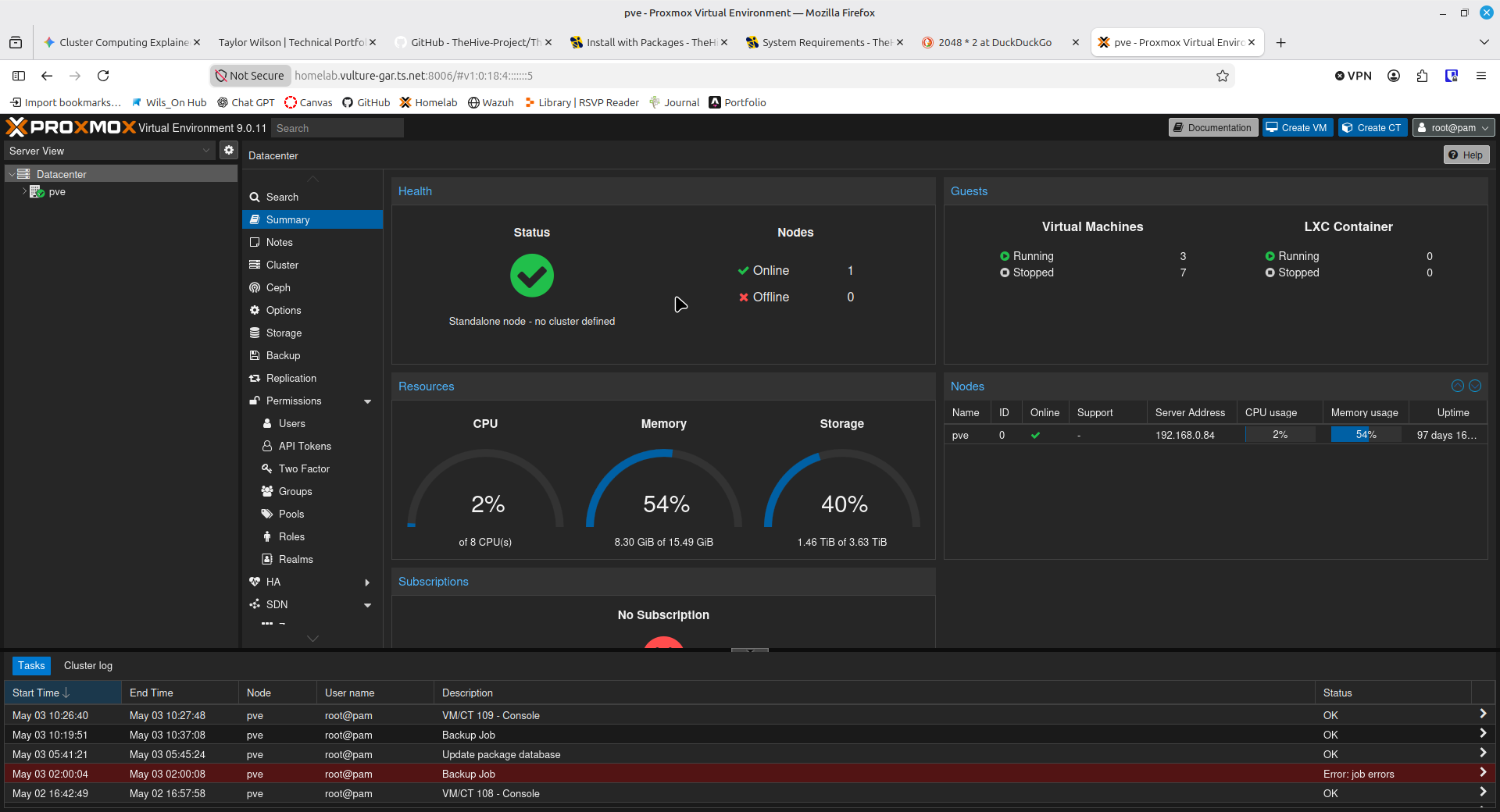
- Navigate to
Datacenter >> Cluster >> Create Cluster. - Name the cluster and select the management network (usually the node’s primary IP).
- Select
Create - Once created, click
Join Informationand copy the encoded text to your clipboard.

Joining the Cluster
Log into the web UI of your second node:
- Navigate to
Datacenter >> Clusterand selectJoin Cluster. - Paste the Join Information from the Master node.
- Enter the Master node’s root password and select
Join.
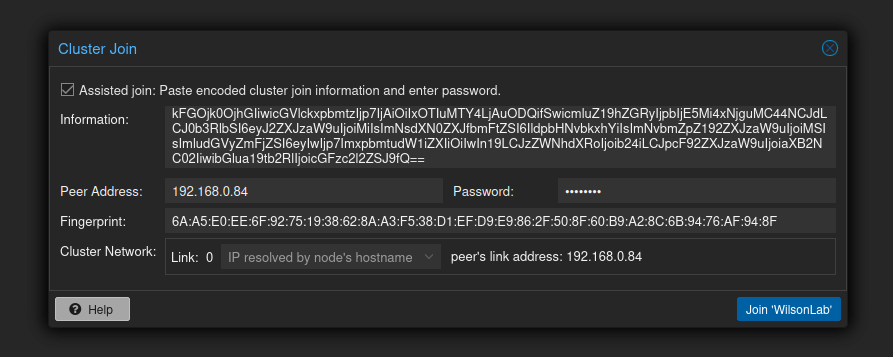
Upon success, you will see a confirmation message.
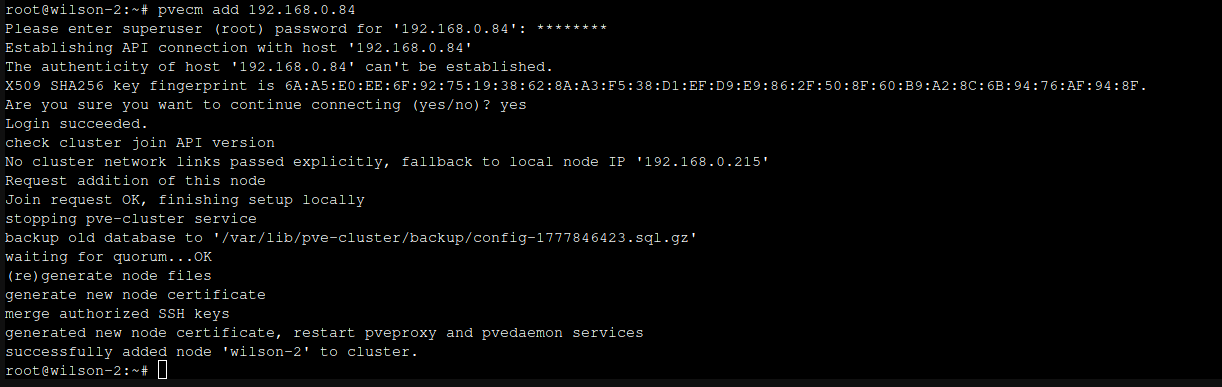
Note: If you encounter issues with the Web UI, you can also join via the CLI using
pvecm add <IP-of-Master-Node>.
Troubleshooting: “Node is not empty” Error
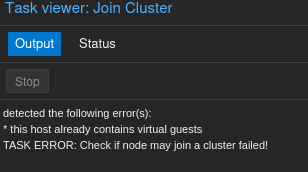
This error occurs if the joining node already contains VMs or containers. Proxmox requires a “clean slate” to prevent ID conflicts within the cluster.
The Workaround:
- Backup your existing VMs to a NAS or external storage.
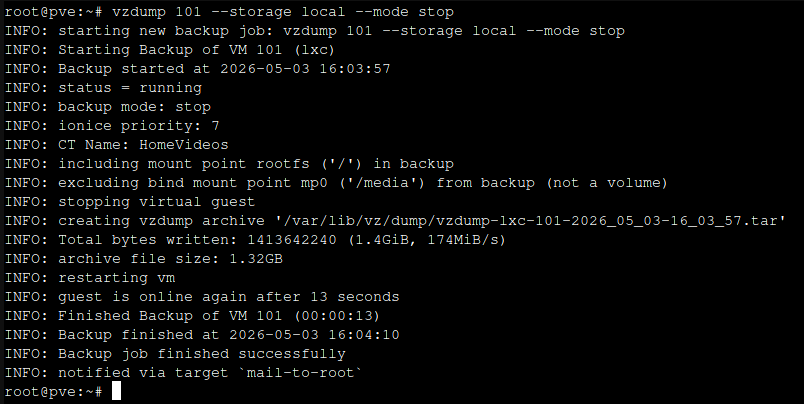
- Delete the VMs/containers on the node.
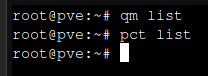
- Verify the node is empty by running these commands in the shell:
qm list(Virtual Machines)pct list(Containers)
Restoring Backups
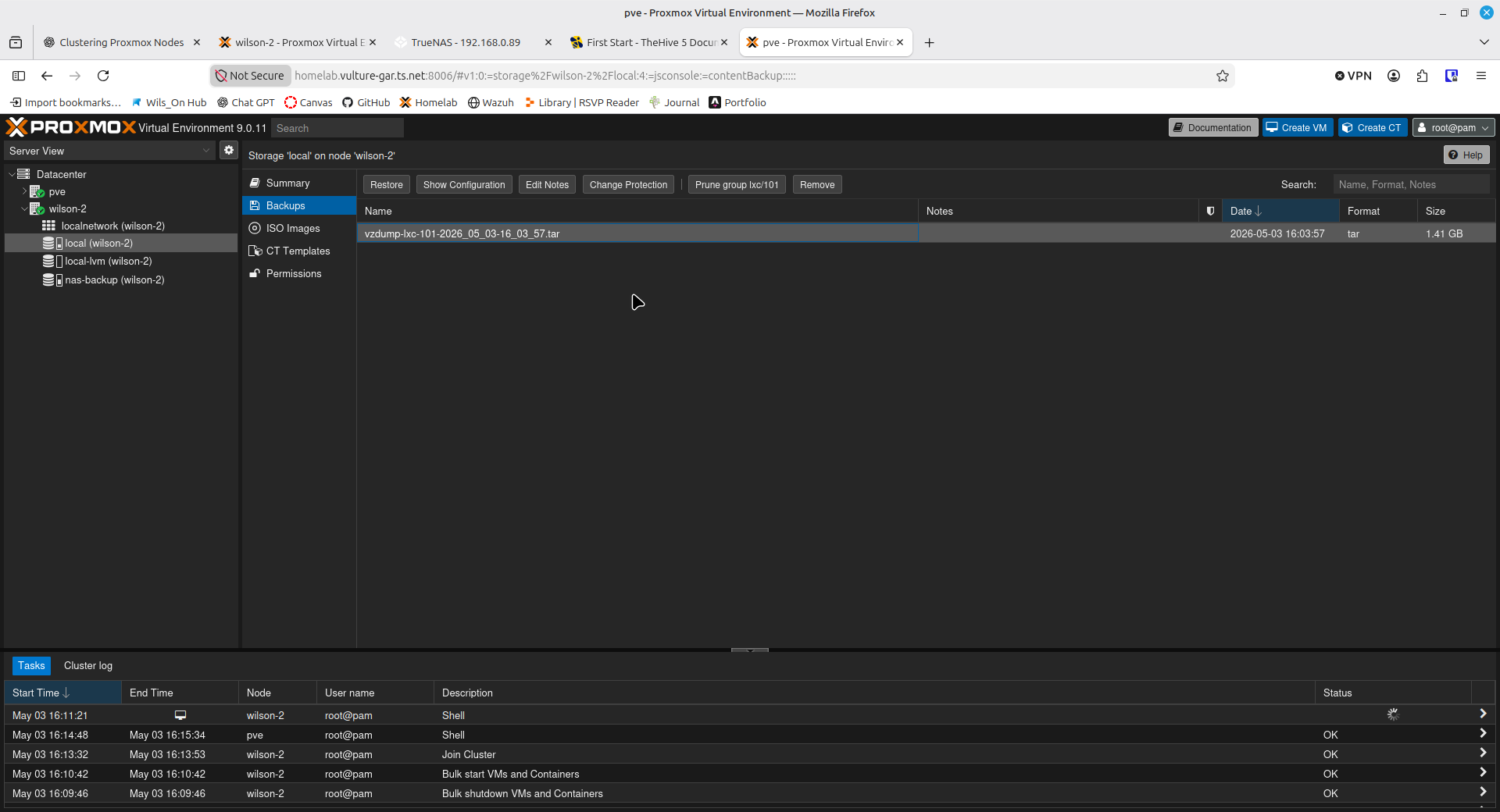
After the node has successfully joined the cluster, navigate to your backup storage, select your .vma or .tar file, and click Restore.
Conclusion
Your Proxmox cluster is now active. You can now perform “Live Migrations” between nodes and manage your entire homelab from a single pane of glass.